How hooks work
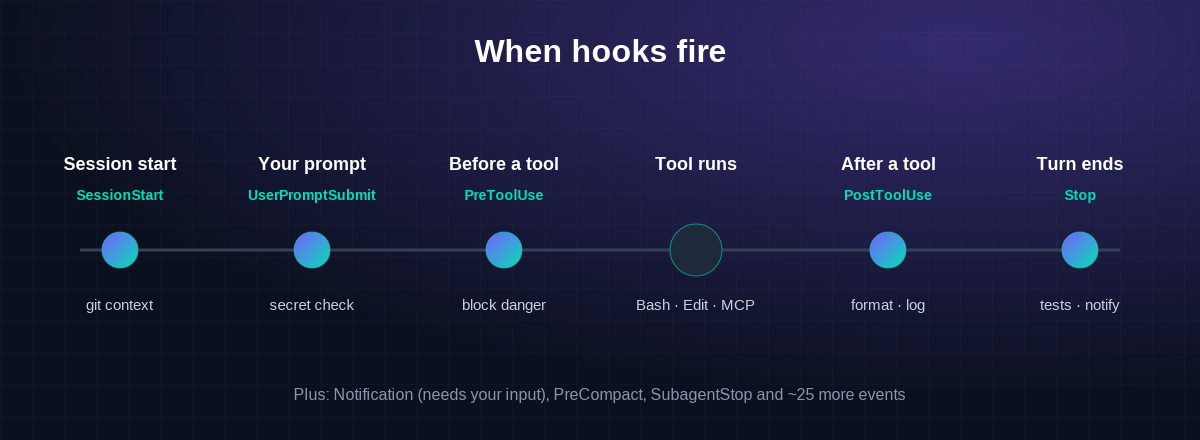
| Event | When | Typical use |
|---|---|---|
SessionStart | session starts or resumes | inject git state, the current ticket |
UserPromptSubmit | you send a prompt | check for secrets, add context |
PreToolUse | before a tool call | block danger, require confirmation |
PostToolUse | after a tool call | format, lint, log |
Notification | Claude needs your input | desktop or Telegram alert |
Stop | Claude finishes its turn | run tests, send a summary |
PreCompact | before context compaction | back up the transcript |
There are 30+ events in total — from subagent lifecycle to model switches — but these seven cover 90% of real use.
How a hook talks to Claude Code
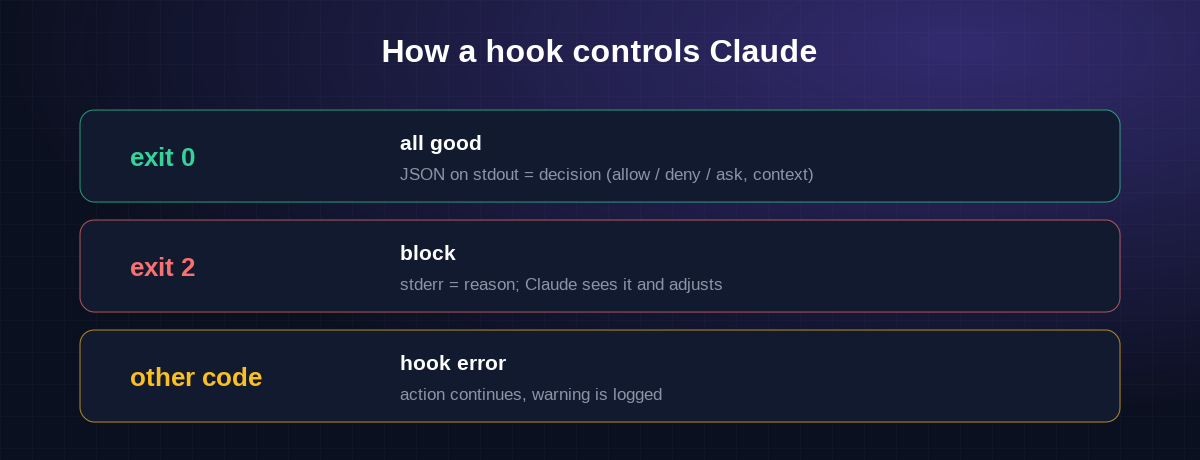
Claude Code sends event data as JSON on stdin: tool name, command, file path, your prompt. The hook answers with an exit code and, optionally, JSON on stdout.
{
  "hook_event_name": "PreToolUse",
  "tool_name": "Bash",
  "tool_input": { "command": "git push origin main --force" },
  "cwd": "/home/me/projects/app",
  "session_id": "..."
}
For fine-grained control, return JSON — for example, deny with an explanation:
{
  "hookSpecificOutput": {
    "hookEventName": "PreToolUse",
    "permissionDecision": "deny",
    "permissionDecisionReason": "Writes to the production database are not allowed"
  }
}
Decisions: allow, deny, ask. When several hooks disagree, the strictest wins.
additionalContext must sit inside hookSpecificOutput — at the top level it’s silently ignored. And stdout must contain only the JSON; a stray debug echo breaks parsing.Where hooks are configured
In the same settings files as permissions: ~/.claude/settings.json, .claude/settings.json or .claude/settings.local.json. Three levels: event → matcher → handlers.
{
  "hooks": {
    "PreToolUse": [
      {
        "matcher": "Bash",
        "hooks": [
          { "type": "command", "command": "${CLAUDE_PROJECT_DIR}/.claude/hooks/block-dangerous.sh" }
        ]
      }
    ]
  }
}
matcher targets tools: Bash, Edit|Write, mcp__github__.* (every tool of an MCP server — the .* is required). Empty or "*" matches all. Check what’s active with /hooks.
10 ready-made recipes
All scripts are in the download with a ready settings.hooks.example.json. I tested each against real inputs: it blocks what it should and stays out of the way otherwise. They use jq, falling back to Python if it’s missing.
1. Block dangerous commands (PreToolUse · Bash)
Stops rm -rf /, git push --force, git reset --hard, DROP TABLE and curl | bash installs. Claude sees the stderr message and proposes a safer alternative.
cmd="$(j .tool_input.command)"
if printf '%s' "$cmd" | grep -Eiq 'git[[:space:]]+push[[:space:]].*--force'; then
  echo "Blocked: force push is not allowed. Ask the user." >&2
  exit 2
fi
2. Protect files (PreToolUse · Edit|Write)
Prevents edits to .env, lock files, .git/ and keys, including Windows-style paths. This guards the edit tools — also deny secret paths in your permission rules.
3. Auto-format (PostToolUse · Edit|Write)
Runs Prettier, Black, gofmt or php-cs-fixer — whichever is installed — after every edit. Never fails the edit.
4. Command audit log (PostToolUse · Bash)
Appends every command the agent runs, with time and folder, to ~/.claude/command-log.txt.
5. Desktop notification (Notification)
osascript on macOS, notify-send on Linux, and a separate .ps1 for Windows — so you can step away while Claude works.
6. Telegram alerts (Notification + Stop)
My favourite: long task running, and Telegram pings you with “needs your input” or “✅ done” plus a short summary. Two environment variables:
export CLAUDE_TG_TOKEN="123456:ABC..."   # bot token from @BotFather
export CLAUDE_TG_CHAT="123456789"        # your chat id (ask @userinfobot)
7. Git context at start (SessionStart)
Claude immediately knows the branch, uncommitted files and recent commits. For SessionStart, plain stdout is added to the context.
8. Secret-leak guard (UserPromptSubmit)
Paste an API key (OpenAI, AWS, GitHub, Slack, Telegram bot) or a private key into a prompt by accident, and the hook blocks it before it reaches the model or the transcript:
{"decision": "block", "reason": "Your prompt looks like it contains a secret key..."}9. Tests before stopping (Stop)
When Claude is about to finish, the hook runs your tests (TEST_CMD, default npm test). If they fail it returns "decision": "block" with the failure output, and Claude keeps fixing. It checks stop_hook_active to avoid infinite loops and only runs when the repo has changes.
10. Backup before compaction (PreCompact)
Saves the full transcript to ~/.claude/transcript-backups/ before /compact — handy if a detail gets lost in the summary.
Install the pack
cp -r claude-code-hooks/.claude/hooks .claude/
chmod +x .claude/hooks/*.sh
# merge the blocks you want from settings.hooks.example.json into .claude/settings.json
/hookstimeout (seconds) per hook.Debugging hooks
| Symptom | Check |
|---|---|
| Hook doesn’t fire | /hooks; the matcher; chmod +x. |
| “JSON validation failed” | stdout must contain only JSON; send debug output to stderr. |
| Block doesn’t block | Use exit code 2. Exit 1 is a non-blocking hook error. |
| Stop hook loops | Exit early when stop_hook_active is true. |
| Nothing works on Windows | Install Git for Windows (Git Bash) or use the .ps1 variants via powershell.exe -File. |
Wrap-up
Hooks turn wishes into guarantees: safety, formatting and alerts stop depending on whether the model remembers. Set up 3–4 once and reuse them everywhere. See also subagents and skills.
FAQ
What are hooks in Claude Code?
Scripts Claude Code runs automatically on events: before a tool call (PreToolUse), after it (PostToolUse), at session start, when a turn ends (Stop) and more. Unlike instructions, hooks always run.
How do I block an action with a hook?
Exit with code 2 and write the reason to stderr, or return JSON with permissionDecision: "deny". Exit code 1 does not block.
Where are hooks configured?
In the hooks section of ~/.claude/settings.json, .claude/settings.json or .claude/settings.local.json. List active hooks with /hooks.
Do hooks work on Windows?
Yes — easiest with Git for Windows (Git Bash). You can also write hooks in PowerShell and call them with powershell.exe -File.
Let’s talk about your project
Describe the task in a couple of sentences — I reply within one business day. Free and no obligation.
Telegram Discuss a project